Clients see you as their Era Rank contact: on their order page, on your public site list link and on your own public profile. Keep your details complete so they trust you and can reach you.
1 Update your profile
Click your name at the top right and choose Profile.

Your details, your public profile link and your public profile information.
| Section | What to fill in |
|---|---|
| Profile Details | Full name and mobile (WhatsApp) number. Username and email are locked; contact support to change them. Upload Picture adds a photo (JPG or PNG, up to 200 KB). |
| Your public staff profile link | Copy Link to share it, View Profile to see it. |
| Staff Profile Information | Skills (type one and press Enter), About / Bio and your Facebook, Twitter / X, LinkedIn and Instagram links. Your staff title is set by our team. |
| Change Password | Type a new password twice, or leave it empty. |
Click Update Profile at the bottom.
2 Your public profile
Your profile lives at erarank.com/staff/your-username. Share it with new clients so they can see who they are dealing with.
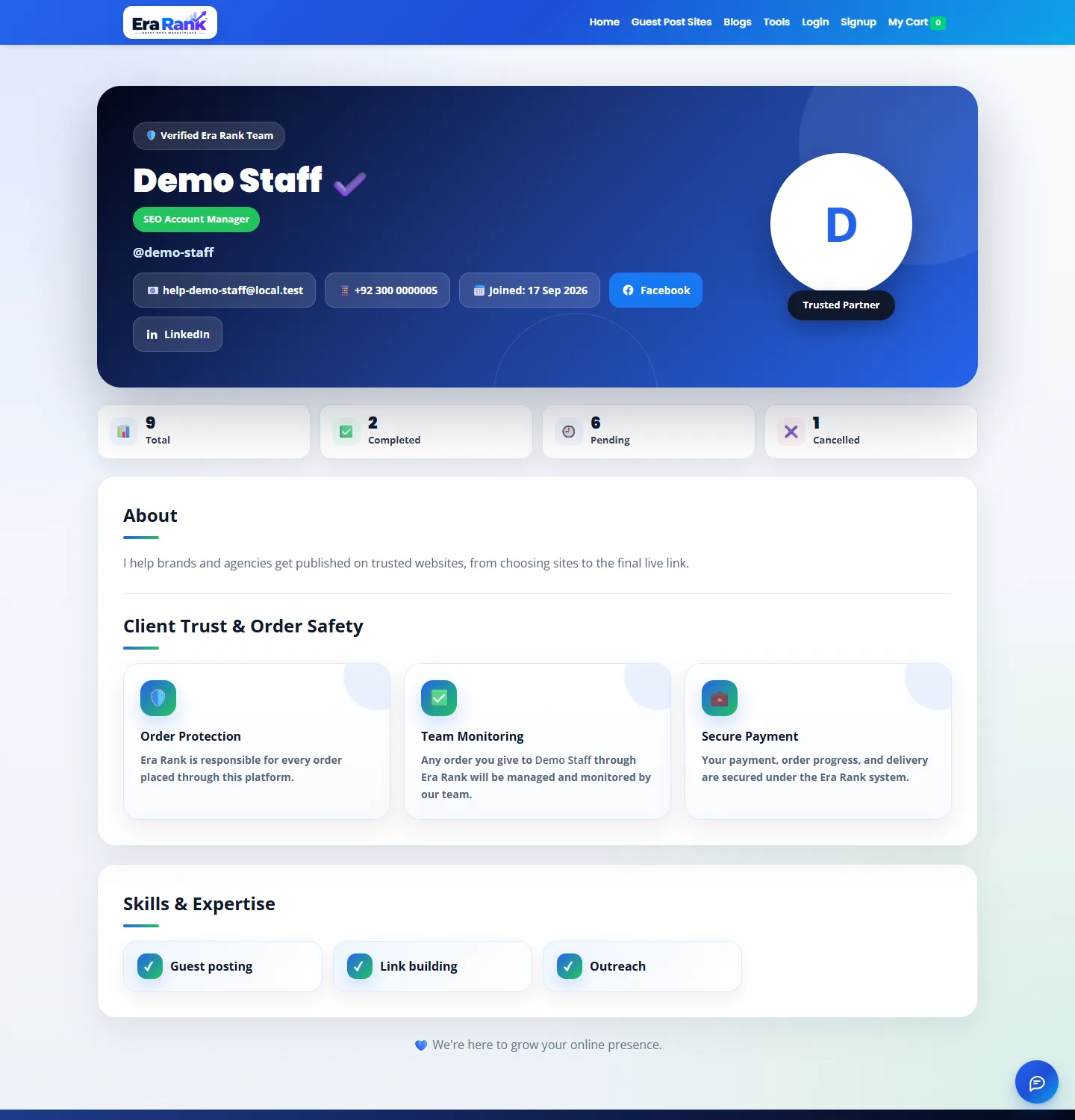
Your public profile with your contact details, order counts, bio and skills.
- Your name, title, email, phone and social links.
- How many orders you have handled, completed, pending and cancelled.
- Your bio and skills, and how Era Rank protects the client's order and payment.
Only approved staff accounts have a public profile.
3 Message the Era Rank team
Each order has a Messages panel on the right. Type your question and click Send; our replies appear in the same panel.

Your messages are on the right, our replies on the left.
- Your chat is with our team only. Publishers don't see it, and you never talk to the publisher directly.
- Keep each message about the order it is on.
- For anything else, email support@erarank.com or use the chat button at the bottom right.