Every new order from your clients waits for you as Not Started. You check it, confirm the price, and send it to our team, who assign it to the publisher.
1 Open your orders
Click Guest Post Tasks. You see the orders of the clients you created, sorted into tabs.
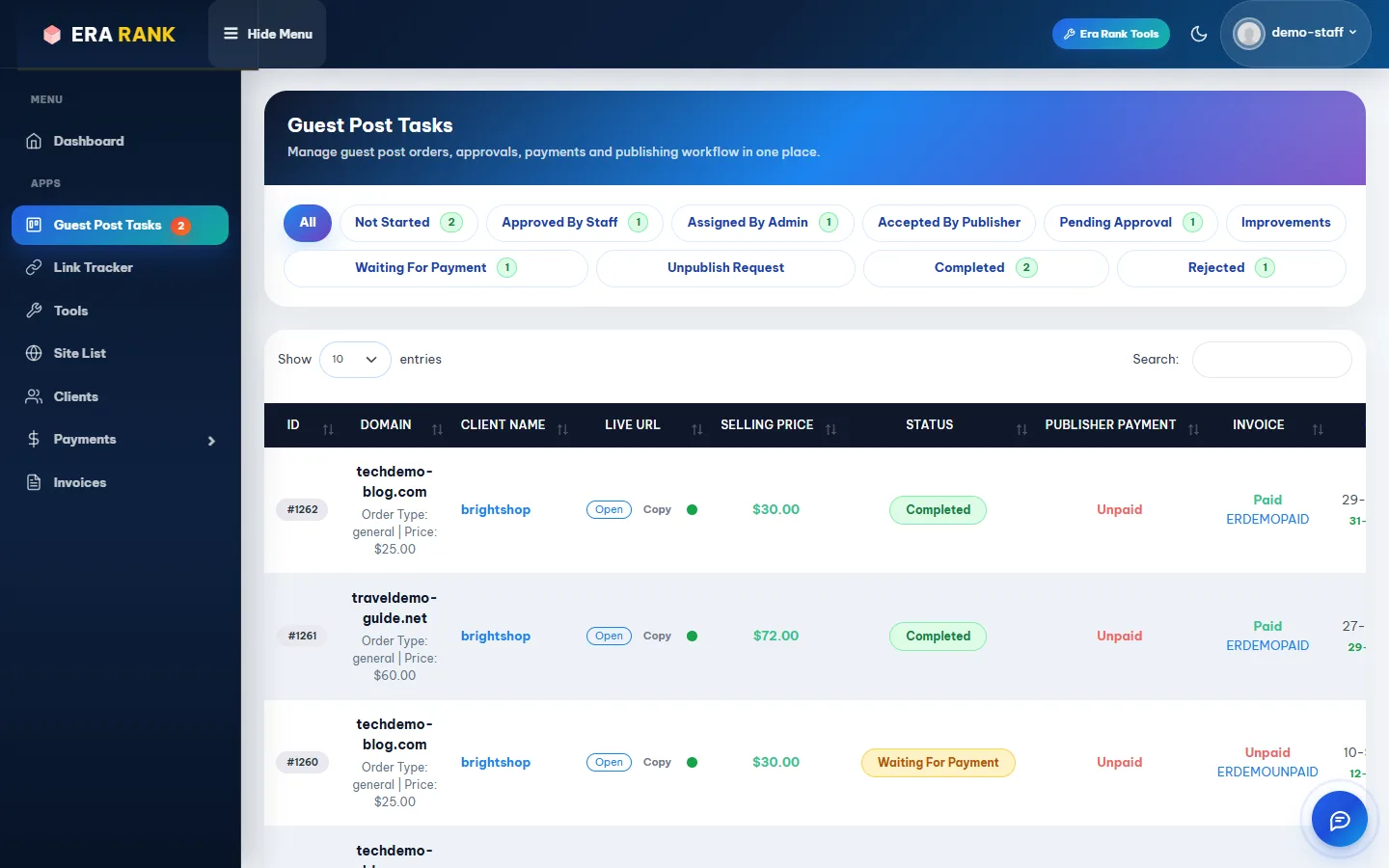
Each order with the website, publisher price, client, live URL, selling price, status and invoice.
| Tab | Meaning | Your action |
|---|---|---|
| Not Started | New order. | Review it (below). |
| Approved By Staff | You sent it to our team. | Wait. |
| Assigned By Admin | A publisher has been asked to publish it. | Wait. |
| Accepted By Publisher | The publisher is working on it. | Wait. |
| Pending Approval | The post is live. | Check it. |
| Improvements | The publisher was asked to fix something. | Wait. |
| Waiting For Payment | Approved; the client has to pay. | Invoice the client. |
| Unpublish Request | Not paid; the publisher was asked to remove the post. | Wait. |
| Completed | The client has paid. | Nothing. It counts towards your earnings. |
| Rejected | Rejected by you, our team or the publisher, or removed for non-payment. | Nothing. |
2 Review a new order
Open the Not Started tab and click View.

A new order: price, website, target URL, keywords and the article.
Check that:
- the website and order type are what the client wanted,
- the Target URL opens and is the right page,
- the article reads well, fits the website and contains the client's link.
You can correct the target URL, keywords and article in place. Copy Content and Download Word let you take the article away to edit it.
The selling price
Selling Price (USD) is what your client pays. It is filled in from the client's margin; change it if you agreed a different price.
Minimum price: the publisher price plus 10%, plus $0.50. For a $25 website that is $28.00. A lower price is refused. Once the client has paid, the price is locked.
3 Send it to admin, or reject it
- Send to Admin: confirm, and the order moves to Approved By Staff. If direct assignment is on for your account, it goes straight to Assigned By Admin.
- Reject: the client doesn't want it any more, or it can't be done. The order moves to Rejected.
- Save / Update: saves your changes and also sends the order to admin, just like Send to Admin.
Make every change before you send the order on. Editing and saving an order later moves it back to Approved By Staff.
If you need a security deposit
When a deposit is required for your account, sending an order holds the publisher price from your deposit. If your deposit is too low you see “Insufficient Security Deposit” with the amount you need to add. See Security deposit.
4 Ask our team a question
Use the Messages panel on the right of any order and click Send. Our replies appear in the same panel. See Messages.