Every staff member has one private link to a public copy of the Site List. Anyone who opens it sees all the websites at your price (publisher price plus your margin), your contact details, and can send you the websites they want.
1 Set up your link
Open Site List and click Share link.

Your link, your margin and the on/off switch.
| Setting | What it does |
|---|---|
| Your link | Click Copy to copy it, or the arrow to open it. The line below shows how many times it has been viewed. |
| Your margin | Percent (%) or Fixed ($ per site). The example line shows what a $20 website costs on your link. |
| Link is on | Turn it off to hide the list. While it is off, the link shows “This list is not available”. |
| New link | Creates a new address. The old link stops working straight away. |
Click Save after changing the margin or the switch.
The link is private: it isn't listed on Google, and publisher names and publisher prices are never shown on it. If it reaches someone you didn't mean to share it with, click New link.
2 What your visitors see
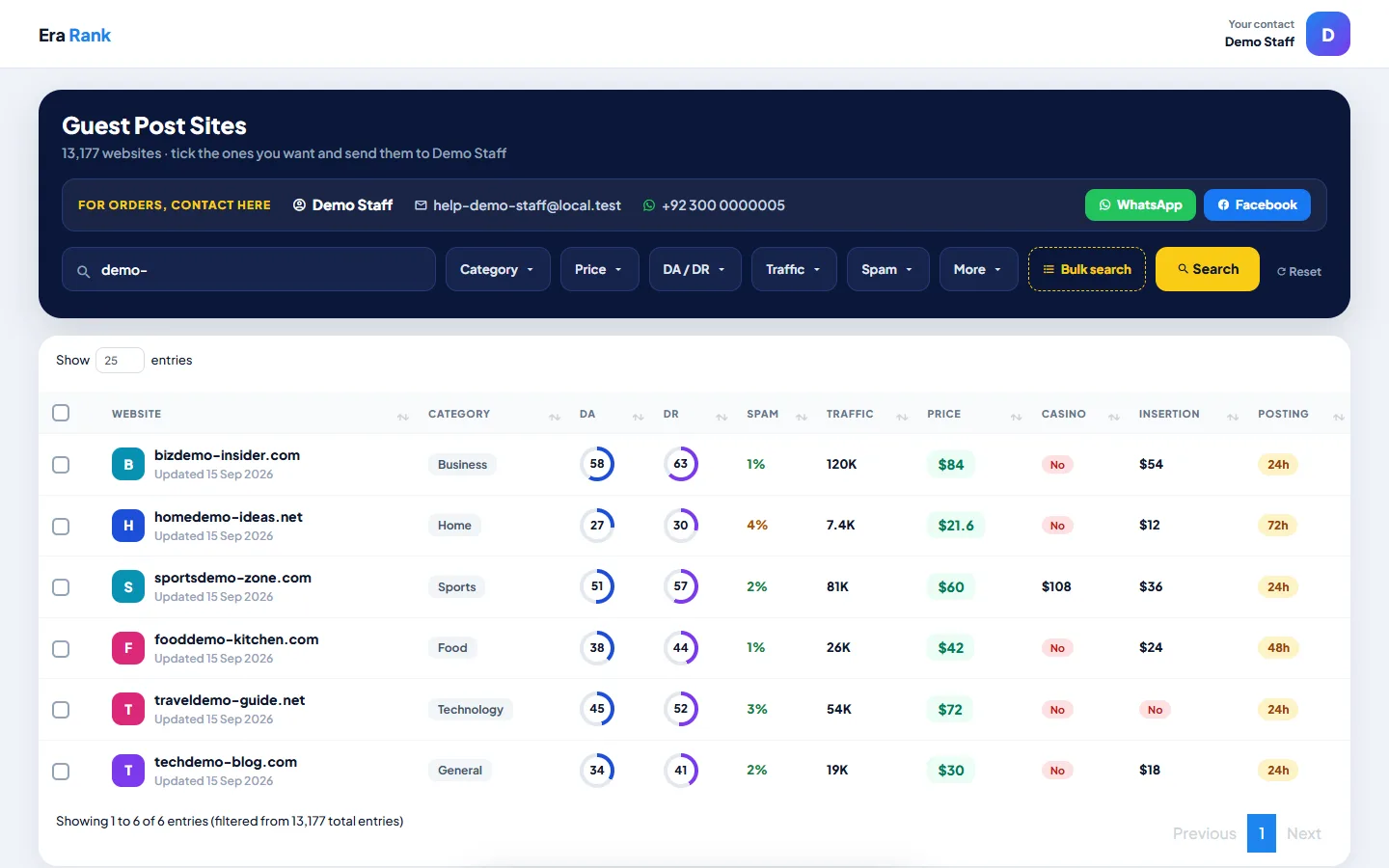
Your contact details at the top, then the same search and filters as your Site List, with your prices.
- For orders, contact here: your name, email and WhatsApp number, plus WhatsApp and Facebook buttons. Keep these up to date on your profile.
- Search, filters and bulk search, exactly like your Site List. The price filter uses your prices.
- A tick box on every row.
3 How a buyer sends you a list
- They tick the websites they want. A bar at the bottom counts them.
- They click WhatsApp to send you the list in a WhatsApp message, or Send to (your name).
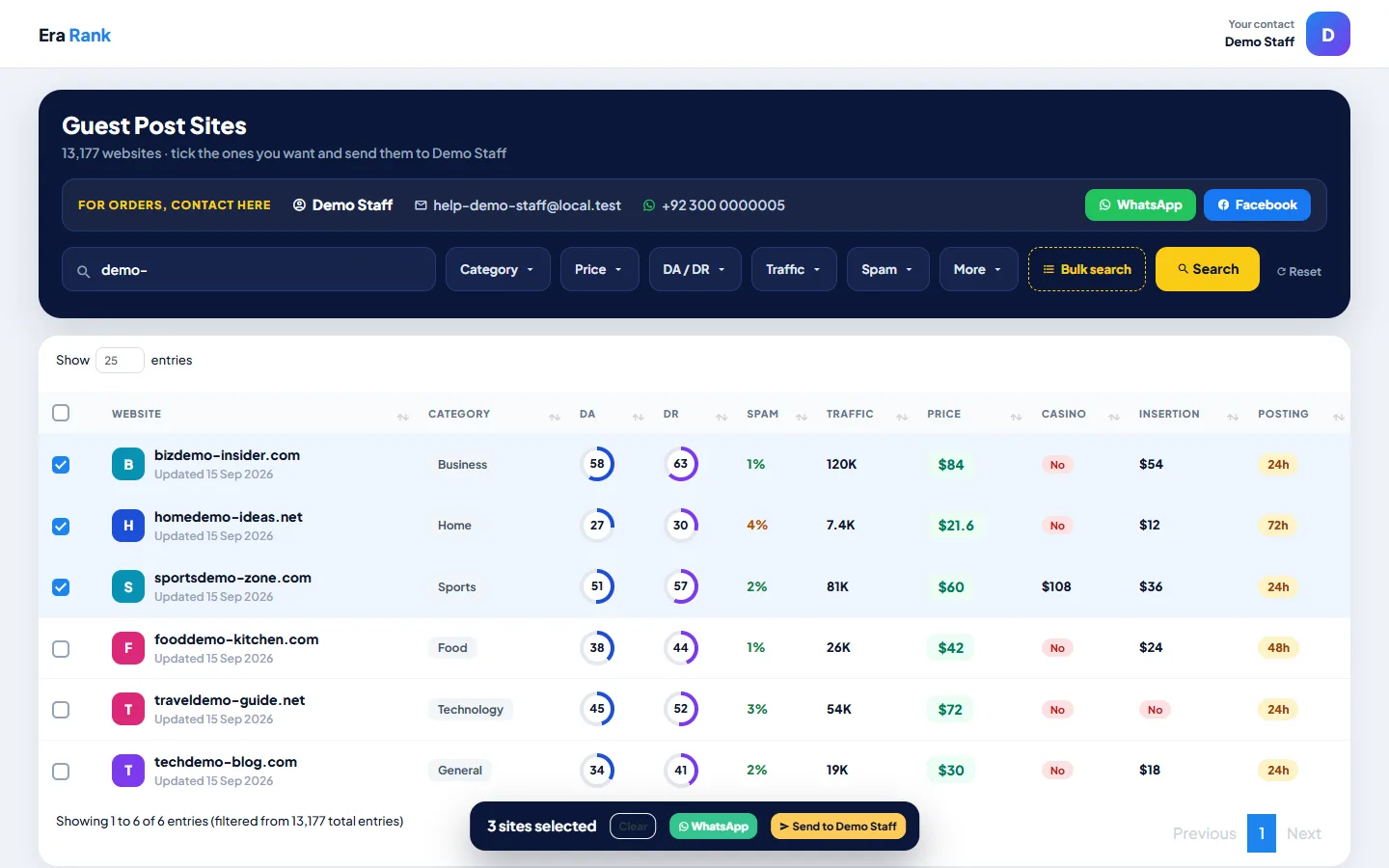
Three websites picked. The bar at the bottom sends them to you.
Send to opens a short form: name, email, WhatsApp (optional) and a message (optional). It lists the websites and the total.
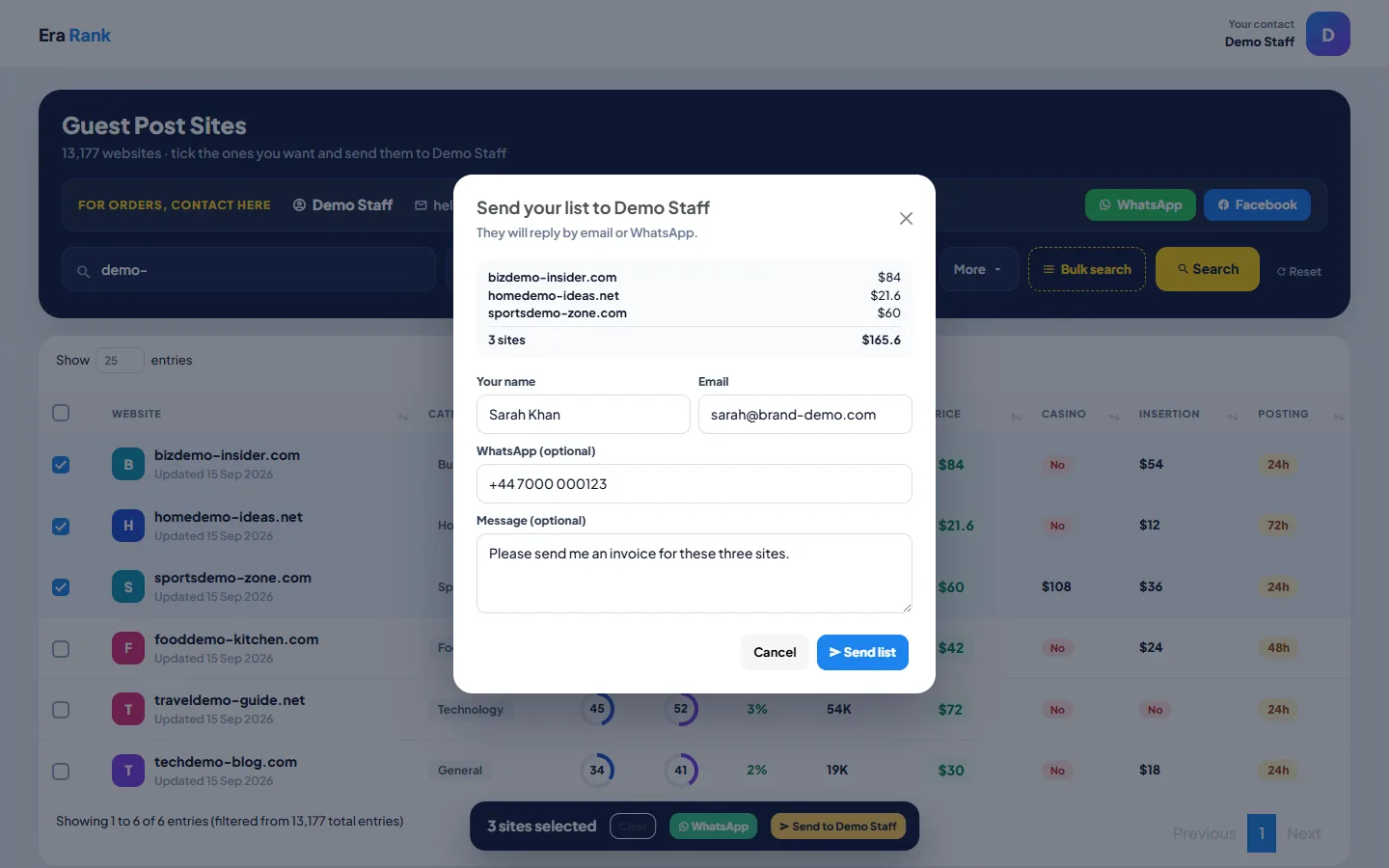
The buyer sees the list and total before sending.
You receive an email, “Site list request: (name) picked (number) site(s)”, with their details and a table of the websites and the prices they saw. Reply to that email to answer them directly.
Then create a client account for the buyer and place the orders.
A buyer can send up to 500 websites at a time.